
Quick Answer
Before playing Dying Light: The Beast on Windows, check the currently published hardware requirements, leave storage space for updates, use a supported graphics driver and begin with a stable settings preset. Change only one setting at a time if the game runs poorly.
- Compare your actual CPU, GPU, RAM and available storage with published requirements; do not rely on a generic “gaming PC” label.
- Start with the game’s default or recommended settings and confirm that controls, subtitles and accessibility options work for you.
- If there are problems, record the symptom and use safe, reversible changes before trying anything advanced.
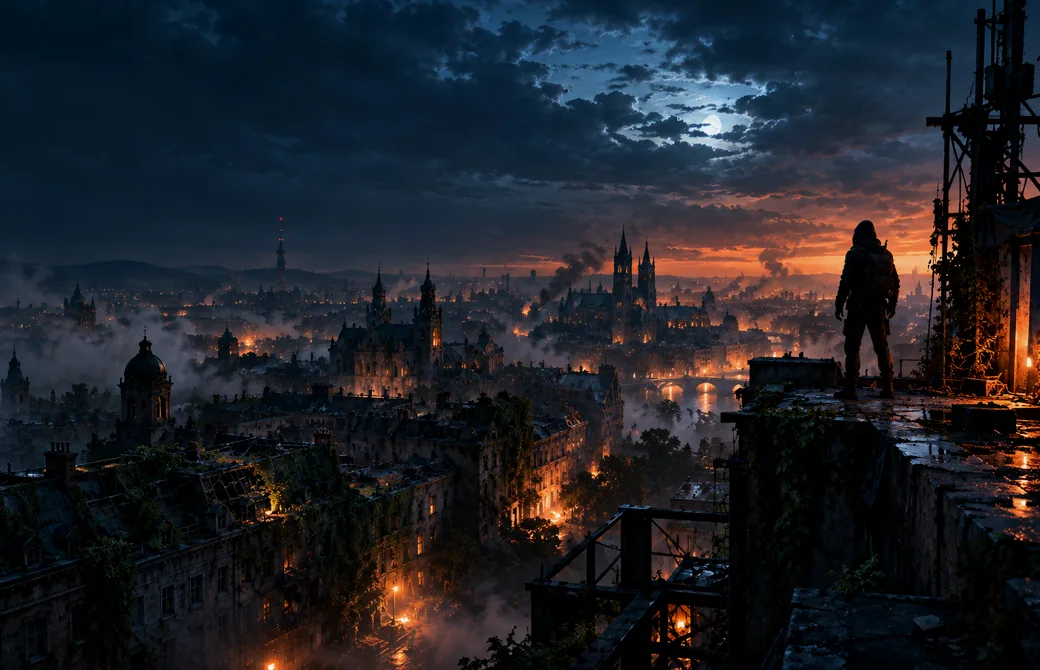
Before changing graphics settings, confirm your PC has the space, memory, and baseline hardware needed for a smooth first session.
1. Check the published Windows requirements
The published PC listing identifies Windows 10 or newer, 16 GB RAM, and 70 GB of free storage on an SSD as the minimum baseline. The listed minimum graphics class includes GTX 1060, Radeon RX 5500 XT, or Intel Arc A750. Compare the full specification of your actual system rather than relying only on a graphics-card name.
2. Leave room for updates
The stated installation size is a starting point, not a promise of permanent free-space requirements. Keep additional storage free for updates, temporary files, and operating-system tasks. An SSD is specified, so do not assume an old mechanical drive is equivalent.
3. Keep troubleshooting reversible
Check Windows updates and supported graphics drivers first. Record your current settings before experimenting. Avoid downloading “FPS boosters,” registry files, or unofficial installers because they add security and stability risks.
4. Choose a stable initial preset
Start from a preset appropriate for your hardware. Test a repeatable outdoor scene, check frame pacing, and adjust one demanding option at a time. Consistent motion usually feels better than brief high-frame-rate peaks.
5. Prepare the controls and accessibility options
Check keybinds, mouse sensitivity, motion blur, field of view if available, and subtitle settings. Lowering settings that strain visibility is a practical gameplay choice, not a competitive disadvantage.
6. Record exactly what changes
If a problem occurs, note the error, graphics preset, current driver, and whether the issue happens in menus or during gameplay. This makes later troubleshooting faster and reduces random changes.
Check hardware and storage, keep the system stable, and tune settings methodically. Use the normal Windows and game settings rather than third-party optimization utilities.
Frequently Asked Questions
Clear answers based on the scope of this independent guide.
How should I prepare my Windows PC before playing?
Compare your CPU, GPU, memory and available storage with current published requirements. Update supported graphics drivers, then establish a baseline in the game’s settings.
Can this guide guarantee my PC will run The Beast?
No. Requirements and results vary by hardware, driver version, game update and settings. Consult the currently published requirements and test your own machine.
What should I change first if the game stutters?
Set a consistent baseline, monitor when the stutter happens and lower one demanding graphical option at a time. Do not install unknown “performance boosters”.
Published by Nightfall PC Guide. Independent editorial commentary. Dying Light and related names belong to their respective trademark owners.